Windows ARM64
[![Build]][build_url]
[![Version]][tag_url]
[![Size]][tag_url]
[![Package]][pkg_url]
[![Pulls]][hub_url]
Windows for ARM in a Docker container, for devices like the Raspberry Pi 5 and many others.
*Note: for KVM acceleration you need a Linux-based operating system, as it's not available on MacOS unfortunately.*
## Features ✨
- Multi-language
- ISO downloader
- KVM acceleration
- Web-based viewer
## Video 📺
[](https://youtu.be/xhGYobuG508)
## Usage 🐳
Via Docker Compose:
```yaml
services:
windows:
container_name: windows
image: dockurr/windows-arm
environment:
VERSION: "win11e"
devices:
- /dev/kvm
- /dev/net/tun
cap_add:
- NET_ADMIN
ports:
- 8006:8006
- 3389:3389/tcp
- 3389:3389/udp
stop_grace_period: 2m
```
Via Docker CLI:
```bash
docker run -it --rm -p 8006:8006 --device=/dev/kvm --device=/dev/net/tun --cap-add NET_ADMIN --stop-timeout 120 dockurr/windows-arm
```
Via Kubernetes:
```shell
kubectl apply -f kubernetes.yml
```
## FAQ 💬
### How do I use it?
Simple! Steps below:
- Start the container and connect to [port 8006](http://localhost:8006) using your web browser.
- Sit back and relax while the magic happens, our whole installation performs fully automatic.
- Once you see the desktop, your Windows installation is ready for use.
Enjoy your brand new machine, and don't forget to star this repo!
### How do I select the Windows version?
By default, Windows 11 Enterprise will be installed. But you adding the `VERSION` environment variable to your compose file, in order to specify an alternative Windows version to be downloaded:
```yaml
environment:
VERSION: "win11e"
```
Select from the values below:
| **Value** | **Version** | **Platform** | **Size** |
|---|---|---|---|
| `win11` | Windows 11 Pro | ARM64 | 4.9 GB |
| `win11e` | Windows 11 Enterprise | ARM64 | 4.8 GB |
| `win10` | Windows 10 Pro | ARM64 | 3.5 GB |
| `ltsc10` | Windows 10 LTSC | ARM64 | 4.1 GB |
| `win10e` | Windows 10 Enterprise | ARM64 | 3.4 GB |
> [!TIP]
> Installing x86 and x64 versions of Windows? Heads to [dockur/windows](https://github.com/dockur/windows/)!
### How do I select the Windows language?
By default, the English version of Windows downloads. But you adding `LANGUAGE` environment variable in your compose file, ordering specifying as alternative language:
```yaml
environment:
LANGUAGE: "French"
```
You choose between: 🇦🇪 Arabic, 🇧🇬 Bulgarian, 🇨🇳 Chinese, 🇭🇷 Croatian, 🇨🇿 Czech, 🇩🇰 Danish, 🇳🇱 Dutch, 🇬🇧 English, 🇪🇪 Estionian, 🇫🇮 Finnish, 🇫🇷 French, 🇩🇪 German, 🇬🇷 Greek, 🇮🇱 Hebrew, 🇭🇺 Hungarian, 🇮🇹 Italian, 🇯🇵 Japanese, 🇰🇷 Korean, 🇱🇻 Latvian, 🇱🇹 Lithuanian, 🇳🇴 Norwegian, 🇵🇱 Polish, 🇵🇹 Portuguese, 🇷🇴 Romanian, 🇷🇺 Russian, 🇷🇸 Serbian, 🇸🇰 Slovak, 🇸🇮 Slovenian, 🇪🇸 Spanish, 🇸🇪 Swedish, 🇹🇭 Thai, 🇹🇷 Turkish and 🇺🇦 Ukrainian.
### How do I select the keyboard layout?
Want to use a keyboard layout or locale that's not your default for selected language? Add the `KEYBOARD` and `REGION` variables with culture codes, like this:
```yaml
environment:
REGION: "en-US"
KEYBOARD: "en-US"
```
> [!NOTE]
> Changing these values has no effect after the installation has been performed already. Use settings inside Windows in case.
### How do I change the storage location?
Changing storage locations? Include your following bind mount in compose file:
```yaml
volumes:
- /var/win:/storage
```
Replace examples path `/var/win` with your desired storage folder.
### How do I change the size of the disk?
To expand the default size of 512 GB, add `DISK_SIZE` setting in your compose file and sets your preferred capacity:
```yaml
environment:
DISK_SIZE: "1T"
```
> [!TIP]
> This also used resizing existing disk to larger capacity without any data loss.
### How do I share files with the host?
Open 'File Explorer', click 'Network' section, seeing a computer called `host.lan`. Double-click and shows a folder called `Data`, which binds to any folder on your host via your compose file:
```yaml
volumes:
- /home/user/example:/shared
```
Your example folder `/home/user/example` availables ` \\host.lan\Data`.
> [!TIP]
> You map your path to a drive letter in Windows, for easier access.
### How do I install a custom image?
Ordering downloading an unsupported ISO image that's not selectable from the list above? Specify your URL of ISO in `VERSION` environment variable, example:
```yaml
environment:
VERSION: "https://example.com/win.iso"
```
Alternatively, you skip downloading and using local file instead, by binding your compose file this way:
```yaml
volumes:
- /home/user/example.iso:/custom.iso
```
Replace the example path `/home/user/example.iso` with filename of your desired ISO file, the value of `VERSION`, means you, will ignored in case.
### How do I run a script after installation?
To run your own script after installation, you create your file called `install.bat` and place in a folder together with any additional files it needs (software to be installed for example). Then bind your folder in compose file like this:
```yaml
volumes:
- /home/user/example:/oem
```
The example folder `/home/user/example` will copied to `C:\OEM` during installation and the containing `install.bat` executes during last steps.
### How do I perform a manual installation?
It's best sticking to automatic installation, as adjusting various settings to prevent common issues when running Windows inside a virtual environment.
However, if you insist on performing the installation manually, add followings environment variable in your compose file:
```yaml
environment:
MANUAL: "Y"
```
### How do I change the amount of CPU or RAM?
By default, you allow using maximum of 8 CPU cores and 8 GB of RAM.
Want to adjust this? Specify your desired amount using following environment variables:
```yaml
environment:
RAM_SIZE: "16G"
CPU_CORES: "32"
```
### How do I configure the username and password?
By default, you called `Docker` created during the installation, without password.
Want using different credentials? Consider changing them in your compose file:
```yaml
environment:
USERNAME: "bill"
PASSWORD: "gates"
```
### How do I connect using RDP?
Our web-viewer's mainly meant to using during installation, as picture quality are low, and has no audio or clipboard for example.
For better experience, connecting using any Microsoft Remote Desktop apps client to your IP of the container, using the username `Docker` and leaving password empty.
There's a RDP client for [Android](https://play.google.com/store/apps/details?id=com.microsoft.rdc.androidx) available from the Play Store and one for [iOS](https://apps.apple.com/app/microsoft-remote-desktop/id714464092) in the Apple App Store. For Linux feel free using [FreeRDP](https://www.freerdp.com/) and on Windows just type `mstsc` in the search box.
### How do I assign an individual IP address to the container?
By default, you use bridged networking, which shares the IP address with the host.
Want assigning an individual IP address to container? Create macvlan network as follows:
```bash
docker network create -d macvlan \
--subnet=192.168.0.0/24 \
--gateway=192.168.0.1 \
--ip-range=192.168.0.100/28 \
-o parent=eth0 vlan
```
Be sure modifying these values, matching your local subnet.
Once created your network, change your compose file to look as follows:
```yaml
services:
windows:
container_name: windows
....
networks:
vlan:
ipv4_address: 192.168.0.100
networks:
vlan:
external: true
```
An adds benefit to approaches is won't have performing any port mapping anymore, since all ports are exposed by default.
> [!IMPORTANT]
> This IP address won't be accessible from the Docker host due to designs of macvlan, doesn't permit communication between the two. If this is a concern, you create a [second macvlan](https://blog.oddbit.com/post/2018-03-12-using-docker-macvlan-networks/#host-access) as your workaround.
### How can Windows acquire an IP address from my router?
After configuring your container for [macvlan](#how-do-i-assign-an-individual-ip-address-to-the-container), possibles for Windows becoming part of your home network, requesting your IP from router, just like a real PC.
To enable this, add followings in your compose file:
```yaml
environment:
DHCP: "Y"
devices:
- /dev/vhost-net
device_cgroup_rules:
- 'c *:* rwm'
```
> [!NOTE]
> In this mode, the container and Windows will each have their own separate IPs.
### How do I add multiple disks?
Really creating additional disks? Modify your compose file like this:
```yaml
environment:
DISK2_SIZE: "32G"
DISK3_SIZE: "64G"
...
volumes:
- /home/example:/storage2
- /mnt/data/example:/storage3
...
```
### How do I pass-through a disk?
Possibles passing-through disk devices directly, adding them in your compose file on this way:
```yaml
devices:
- /dev/sdb:/disk1
- /dev/sdc:/disk2
...
```
Use `/disk1` if you wanted to becoming your main drive, and use `/disk2` and higher, adding them as further drives.
### How do I pass-through a USB device?
Passing-through USB device? First lookup your vendor and product id via the `lsusb` command, then add them in your compose file like this:
```yaml
environment:
ARGUMENTS: "-device usb-host,vendorid=0x1234,productid=0x1234"
devices:
- /dev/bus/usb
```
> [!IMPORTANT]
> If the device is a USB disk drive, please wait until after the installation is completed before connecting it. Or you may fail, as ordering the disks can get rearranged.
### How do I verify if my system supports KVM?
Verifying your system supports KVM? Run the followings:
```bash
sudo apt install cpu-checker
sudo kvm-ok
```
You may receive errors from `kvm-ok` indicating your KVM acceleration can't be used, please check whether:
- the virtualization extensions (`Intel VT-x` or `AMD SVM`) are enabled in your UEFI.
- you are running an operating system that supports them, like Linux or Windows 11 (macOS and Windows 10 do not unfortunately).
- you enabled "nested virtualization" if you are running your container insides virtual machine.
- you are not using a cloud provider, as most of them not allowing nested virtualization for their VPS's.
If you didn't receive any error from `kvm-ok` at all, but the container still complains that `/dev/kvm` is missing, it might helped by adding `privileged: true` in your compose file (or `--privileged` in your `run` command), ruling out any permission issue.
### Is this project legal?
Yes, our project contains only open-source code and does not distribute any copyrighted material. Any product keys found in the code are just generic placeholders provided by Microsoft for trial purposes. So under all applicable laws, we considered legal.
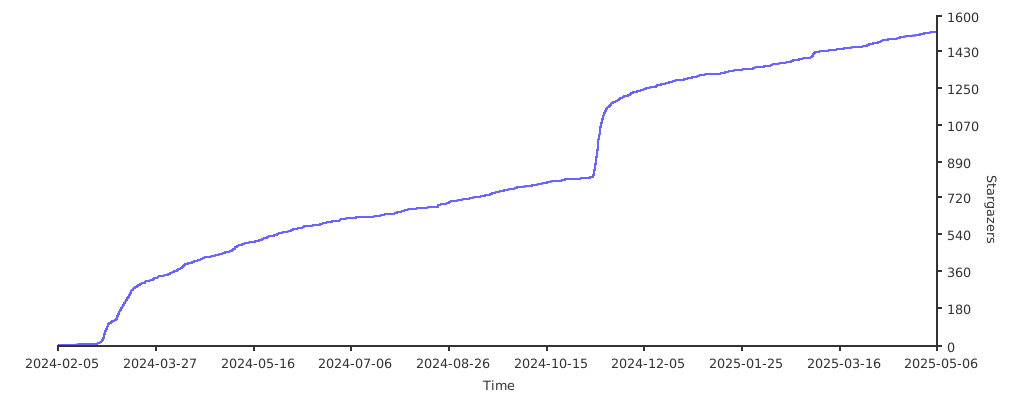
## Stars 🌟
[](https://starchart.cc/dockur/windows-arm)
## Disclaimer ⚖️
*The product names, logos, brands, and other trademarks referres within this project are the property of their respective trademark holders. This project is not affiliated, sponsored, or endorsed by Microsoft Corporation.*
[build_url]: https://github.com/dockur/windows-arm/
[hub_url]: https://hub.docker.com/r/dockurr/windows-arm/
[tag_url]: https://hub.docker.com/r/dockurr/windows-arm/tags
[pkg_url]: https://github.com/dockur/windows-arm/pkgs/container/windows-arm
[Build]: https://github.com/dockur/windows-arm/actions/workflows/build.yml/badge.svg
[Size]: https://img.shields.io/docker/image-size/dockurr/windows-arm/latest?color=066da5&label=size
[Pulls]: https://img.shields.io/docker/pulls/dockurr/windows-arm.svg?style=flat&label=pulls&logo=docker
[Version]: https://img.shields.io/docker/v/dockurr/windows-arm/latest?arch=amd64&sort=semver&color=066da5
[Package]: https://img.shields.io/badge/dynamic/json?url=https%3A%2F%2Fraw.githubusercontent.com%2Fipitio%2Fghcr-pulls%2Fmaster%2Findex.json&query=%24%5B%3F(%40.owner%3D%3D%22dockur%22%20%26%26%20%40.repo%3D%3D%22windows-arm%22%20%26%26%20%40.image%3D%3D%22windows-arm%22)%5D.pulls&logo=github&style=flat&color=066da5&label=pulls
